

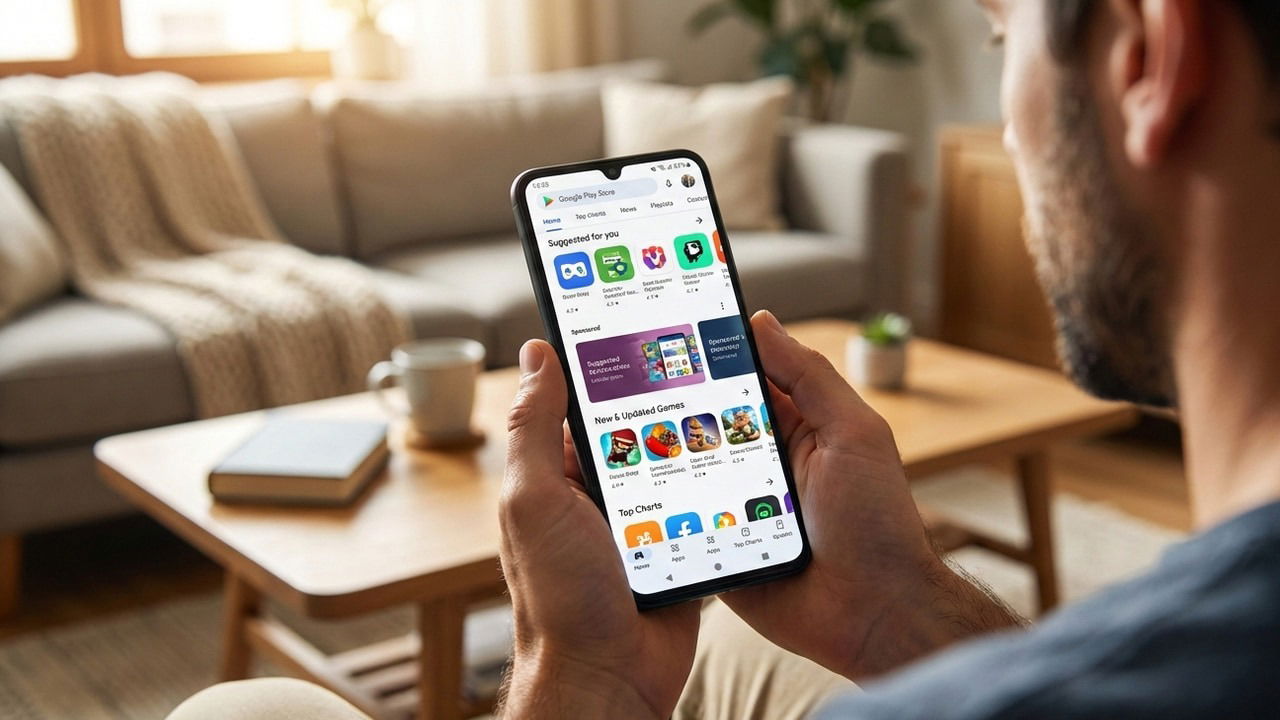
The Google Play Store is excellent for finding apps – until the algorithm gets the wrong idea. In my case, my kids have a knack for hijacking my phone, quickly turning my recommendation feed into a chaotic wall of makeup and rainbows. I have to use the following methods to get rid of unwanted activity and reclaim control over my recommendations.
Prevent Specific Activity from Influencing Play Store Recommendations
Google learns from your Play Store activity by default, which includes searches and opened apps. All of this is recorded in Google My Activity alongside other data stored by Google. If you want to delete a specific activity, you can just delete it from the My Activity section.
In the Play Store app, tap on your profile icon and select Personalization in Play. Tap on Play History here, and you’ll see all your activity. Each activity has an X button next to it that you can tap to permanently remove it. Once removed, Google will forget it happened, so it won’t influence your recommendations.


I personally find deleting activity one by one a bit too cumbersome. So I just delete all activity on the day the unrelated activity happened. To do so, tap on the Delete drop-down menu to select the option to delete activity based on a specific time period.


Alternatively, you can also go to myactivity.google.com and switch to Play History to manage Play Store activity.
Prevent Specific Apps from Influencing Play Store Recommendations
Google Play Store also uses your installed and previously installed apps for curating recommendations. This means your previous activity – even from years old – can influence your Play Store recommendation algorithm. If you don’t want installed apps to have an impact on your recommendations, follow the steps below to disable them:
Open Personalization in Play and tap on Other Play Personalization options. Here, tap on Manage under Your Play content, and you’ll see all apps/games you ever installed.


Just tap the toggle next to the app you don’t want used for personalization, and it will not be included for app recommendations.
Fully Reset Google Play Store Recommendation Algorithm
If you are tired of bad Google Play Store recommendations and believe it’s broken beyond fixing, then you can fully reset it as well. This should be a last resort, as it will delete all your Play Store data with no way to undo the changes. This involves multiple steps, so follow them in sequence:
Delete Google Play Store Activity History
First, let’s delete all activity history that directly influences your recommendations in real-time. Open Play History again, as we did above, and select Delete → Delete all time. Ensure both the Google Play Store and Google Play Games are checked and tap Next. You can then preview your data and tap Delete to get rid of it.


Remove Uninstalled Apps History
Since Google keeps a record of all the apps you ever owned, you’ll have to delete the history of apps you have uninstalled to prevent personalization through them. Tap on your profile icon and select Manage apps & device. Here, move to the Manage tab and select This device → Not installed.


You’ll see all uninstalled apps. Select the checkbox next to each item here and then tap on the Delete icon in the top-right corner to remove them all.

Delete Apps and Games Interests
Under the For You section of the Play Store, Google sometimes directly asks for your interest in games and apps. If it ever asked you about them and you provided your interests, then you’ll have to delete them as well for a full reset.
Tap on your profile icon and select Settings. Under the General section, open Interests and tap on both Remove game interests and Remove app interests to clear them.


While this is enough to reset your Google Play Store personalization algorithm, it’s also recommended to delete the Play Store data and uninstall its updates. This ensures your changes are immediately applied, and no local data influences your recommendations.
These steps will ensure the Google Play Store shows you apps and games that are related to you and make new app discovery easier. If you are still having trouble finding the right apps and games in the Play Store, try these Google Play search hacks.
