

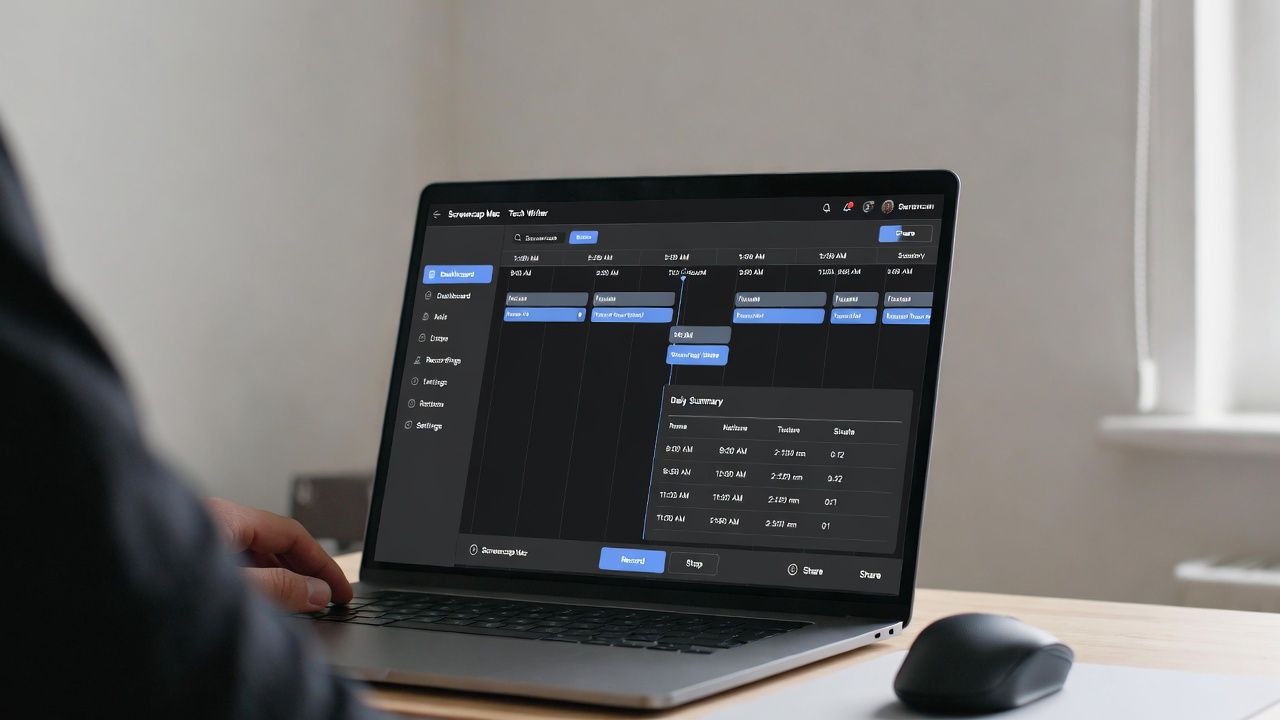
Have you ever found yourself staring at your Mac screen at the end of a long day, wondering where the time went? As a freelance writer, I’ve been there, scrambling to piece together tasks for invoices. The Screencap Mac app helps solve this by automatically tracking your activity, without needing timers or constant input.
The Pain Screencap Solves (and Why It Matters)
We’ve all had those days. You spend hours working on your PC, but by evening, it all feels a blur. Your browser history is chaotic, and taking screenshots manually just adds extra work. If you’re like me, juggling deadlines often leads to undocumented hours and frustration when it’s time to bill clients or review progress.
That’s where the Screencap Mac app comes in. This open-source tool automatically captures what’s happening on your screen and turns it into simple timelines and daily summaries.

It’s helpful for remote workers, developers, and writers who need clear proof of their work. Instead of guessing or piecing together puzzles, Screencap remembers for you, so you can focus on your actual tasks.
For basic manual captures, check out how to take screenshots on your Mac. But for automated tracking, Screencap is the way to go.
What Screencap Does in Real Terms
At its core, the Screencap Mac app takes screenshots on a set schedule, say every few minutes, without you having to do anything. You can set rules to ignore certain apps, like your personal browser, so your timeline stays focused on work.

The timeline view is where the real magic happens. It shows how long you spent in different apps, highlights productive stretches with focus percentages and heatmaps, and flags distractions like social media scrolling.
Daily summaries help you notice patterns, like how often short research turns into long detours. Over time, this makes it easier to understand how you actually spend your day.

If you want more details, Screencap offers optional AI labeling, either via local Ollama or through the cloud. This answers a simple question most of us ask at the end of the day: Did I really work for hours, or was I just drifting? If you’re trying to improve focus, pairing this with Pomodoro timers for Mac can make those patterns easier to manage.

Plus, it creates secure end-to-end encrypted feeds for sharing wrapped days with teams. So, if you’re collaborating directly, you can simply pick the overview of your timeline to share with your project manager. This makes it great for group work and team projects since it eliminates the back-and-forth to prove logged hours.
My Experience – What Worked and What Didn’t
Testing the Screencap app quickly highlighted habits I usually ignore. Setup was mostly straightforward, although dealing with macOS permissions took a bit of effort, especially on newer versions. It took only a few minutes, but the process felt slightly awkward the first time. My storage usage increased with frequent captures, but I didn’t notice any slowdown in performance.

The app works best when left alone. Once permissions were set, it ran quietly in the background and required little attention. What surprised me the most was the clarity. Seeing my day laid out visually made it obvious how often short research sessions turned into long detours. Once I saw that, it was easier to adjust my habits and add rules to skip certain activities.
The Day Wrapped feature became my go-to for quick checks. It helped me stay more focused, even if it wasn’t perfect. The AI tagging worked well for categorizing my writing sessions, but it miscategorized about half of my edits at first, requiring manual tweaks early on.
Compared to other simple screenshot tools, Screencap feels more practical. It’s about understanding how your workday actually unfolded. And for me, that clarity helps with my invoicing and memory issues. For broader options, see our roundup of the best Mac screenshot apps.
Quick Setup and Pitfalls to Avoid
Getting started with the Screencap app on Mac is simple, but a few steps matter. Grab it from GitHub and grant screen recording and accessibility permissions. Without them, the app won’t capture anything, and your timeline will stay empty.

After that, choose a capture frequency that makes sense. Something like every 15 works best for me. Capturing too often just fills your storage with useless files. Adding rules to skip non-work apps also keeps things cleaner.

Then, enable AI classification if you want smarter tags and automatic organization. But I would advise you to start simple. Local processing keeps things private and easier to manage.

If you’re working with teams and need structured reports, comparing them with tools like those discussed in our TMetric review can help set expectations.
Finally, open the timeline to review, tweak labels with shortcuts like Command + Shift + P for milestones, and run the End of Day summary. If you integrate it with Mac shortcuts, it improves seamless activity tracking without disrupting your flow.
Should You Use It?
Overall, the Screencap app stands out for being free, privacy-focused, and easy to leave running in the background. Drawbacks like requiring some setup and occasional adjustments are true. Also, its macOS exclusivity is a thing.
However, for freelancers or developers who need an honest workflow view, it’s a practical way to get clarity.
If your needs are simple or privacy is a major concern, built-in tools may be enough. But if you want to know what you actually did versus what you think you did, this tool turns your Mac into a reliable productivity mirror. Give it a try for better activity tracking.
